
- Community
- Plain Yocto & Zephyr
Building Yocto and Zephyr for the Arduino UNO Q
Your own Linux image on the UNO Q MPU and your own firmware on its MCU, with plain Yocto and Zephyr: factory backup, EDL flashing, USB access, programming the STM32 from Linux, and the traps along the way.
Marco Pennelli · · 17 min read
Full layer and code on GitHubThe Arduino UNO Q has two processors. The Qualcomm QRB2210 (the MPU) runs Linux from eMMC, and the STM32U585 (the MCU) runs its own firmware. The MCU has no external SWD pins, so the only thing that can program it is the Linux side of the same board. That one fact shapes everything in this guide.
There is no SD card slot for the MPU either, so there is no "take the card out and fix it on your laptop". The only way in is the SoC's Emergency Download mode (EDL), which lives in the chip's mask ROM. That cuts both ways: it is the only way to install anything, and it is also why the board is very hard to brick permanently. A bad image means the board will not boot until you flash it again, not that the board is gone.
Everything here uses plain Yocto and Zephyr, no EmbedForge required. The layer, the Zephyr application and the scripts are open source (MIT) in arduino-uno-q-toolkit.
Not affiliated with Arduino. Arduino and UNO Q are trademarks of Arduino S.r.l.
What you end up with
- A Linux image of your own on the MPU, reachable over the single USB-C cable as both a network link and a login shell, and able to program the MCU.
- Firmware of your own on the MCU, under MCUboot, driving the 13x8 LED matrix.
- Optionally the Exein Pulsar runtime security agent, with the kernel configured so its eBPF LSM path works instead of silently falling back to kprobes.
Arduino's Debian image is the right place to start and the wrong place to ship from: you cannot pin what is in it, drop what you do not need, or turn on a kernel option. Past the prototype you build your own, and then you need the parts here:
meta-unoq, a Yocto layer: the USB gadget and its login console, OpenOCD with the board's SWD pin map andunoq-flash-mcu, a systemd unit for Pulsar, and the kernel fragments all of it needs;zephyr/led-matrix, an application and a west manifest, built withsysbuildso one build produces MCUboot and the signed application together.
What you need
- A USB-C cable that carries data. See troubleshooting; this catches more people than anything else here.
- A jumper shunt (2.54 mm) or a female-to-female jumper wire.
- A Linux host. The tools exist for macOS and Windows too, but the commands below are Linux.
- About 2.5 GB of disk for the factory image.
- Optional but worth having: a 1.8 V USB-UART adapter, if you plan to build your own images (see "Getting a shell").
Two tools, both from Arduino and the same binaries their official flasher uses:
- Arduino Flasher CLI (releases) downloads and flashes Arduino's Debian images.
- qdl (releases) is the Qualcomm download tool. You need it only to flash an image that is not Arduino's, for example one you built yourself. The Flasher CLI embeds its own copy, so you do not need it for recovery alone.
tar xzf arduino-flasher-cli-*-linux-amd64.tar.gz
tar xzf qdl_*_Linux_64bit.tar.gz
./arduino-flasher-cli version
./qdl --version
Step 1: keep a copy of the factory image
This is the single most useful thing you can do before experimenting.
./arduino-flasher-cli list
./arduino-flasher-cli download unoq --dest-dir ~/arduino-uno-q-toolkit
list shows every published image, not only the newest, and download --version <v> fetches any of them. The image is roughly 2.2 GB and arrives as a .tar.zst. Record its checksum so a truncated copy is obvious later:
sha256sum ~/arduino-uno-q-toolkit/arduino-unoq-debian-image-*.tar.zst > ~/arduino-uno-q-toolkit/SHA256Keep it on real disk, not in /tmp. On most distributions /tmp is a RAM filesystem, so a 2.2 GB download there costs you memory and disappears at the next reboot, which is exactly when you are likely to want it.
The Flasher CLI can install from a local file:
./arduino-flasher-cli flash ~/arduino-uno-q-toolkit/arduino-unoq-debian-image-20260528-558.tar.zstPrefer that over flash unoq, which downloads the image each time. A board that will not boot is the worst moment to discover your internet is down.
Step 2: host setup, once
qdl and adb both need raw USB access.
# EDL mode (flashing)
echo 'SUBSYSTEM=="usb", ATTR{idVendor}=="05c6", ATTR{idProduct}=="9008", MODE="0660", TAG+="uaccess"' \
  | sudo tee /etc/udev/rules.d/50-qdl.rules

# The board running Arduino's image (adb)
echo 'SUBSYSTEM=="usb", ATTR{idVendor}=="2341", ATTR{idProduct}=="0078", MODE="0660", TAG+="uaccess"' \
  | sudo tee /etc/udev/rules.d/51-arduino-unoq.rules

sudo udevadm control --reload-rules
sudo udevadm trigger
MODE="0660" with TAG+="uaccess" grants access to the user logged in at the machine, rather than to everyone as MODE="0666" would. Replug the board after adding a rule: rules apply when a device appears, not retroactively.
ModemManager will grab the board in EDL, because it looks like a modem:
sudo systemctl stop ModemManagerStep 3: enter EDL
EDL is entered by holding the USB_BOOT strap low while the board powers on. The strap is sampled once at power-on, so the board must be fully unpowered first. Unplugging USB-C is enough.
The JCTL header is a 2x5 next to the USB-C connector, silkscreened JCTL:
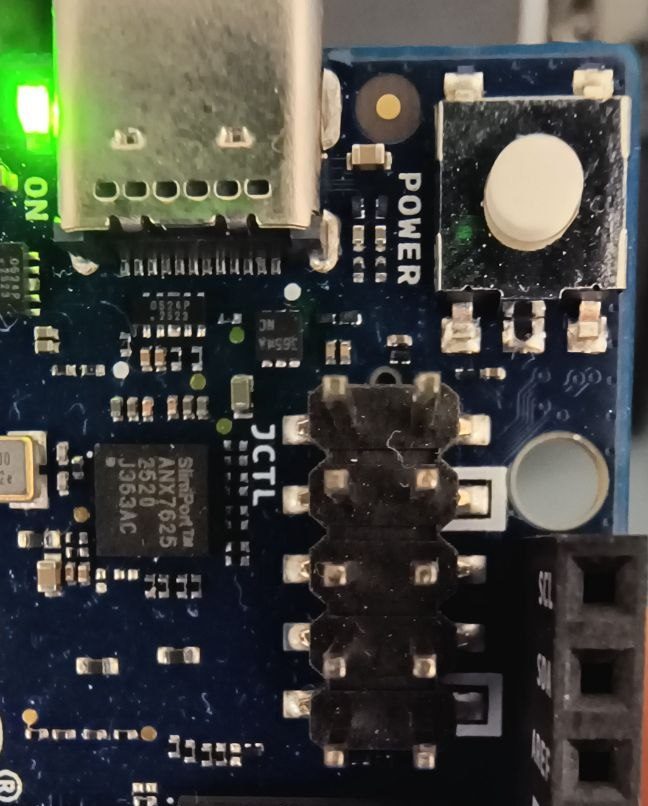
| left | right | |
|---|---|---|
| row 1 | VBUS_DISABLE | +1V8 OUT |
| row 2 | PMIC_RESET | GND |
| row 3 | SOC_SE4_RX | VOL_UP |
| row 4 | SOC_SE4_TX | VOL_DOWN |
| row 5 | USB_BOOT | GND |
USB_BOOT and a GND sit opposite each other in row 5, so a jumper shunt placed across that end row is all that is needed.
Find the row by the silkscreen, then confirm it
The two ground pins are marked. Each carries a white square in the silkscreen, and no other pin on the header does. That is the quickest way to orient yourself, and it is printed on the board in your hand rather than on a photograph of someone else's.
There are exactly two of those marks, at rows 2 and 5, and only row 5 is at an end of the header. So:
- the end row that has a marked pin is row 5: that is the one to jumper;
- the end row with no marked pin is row 1: leave it alone.
This matters because published pictures disagree about whether the header sits at the upper left or the upper right, and your board can be the other way round from whatever diagram you are looking at. Orientation taken from a photograph is how people short the wrong pins.
If the silkscreen is hard to read under a heatsink or poor light, confirm it electrically: with the board unpowered, use a multimeter in continuity mode from a known ground (the USB-C shell, or a mounting hole) to the two pins at each end of the header. The end row with exactly one ground pin is row 5; the end row with none is row 1.
Sequence
- Disconnect USB-C so the board is fully unpowered.
- Fit the shunt across row 5 (
USB_BOOTtoGND). - Connect USB-C with the shunt still in place.
- Confirm:
lsusb | grep 05c6should show05c6:9008, Qualcomm HS-USB QDLoader. Running normally the board is2341:0078instead. - Flash.
- Remove the shunt and power-cycle. Left in, the board re-enters EDL on every boot and never starts what you installed.
Step 4: flash your own image
A build system that targets this board produces a qcomflash package: a directory containing prog_firehose_ddr.elf, rawprogram*.xml, patch*.xml and the partition images.
cd <the unpacked qcomflash directory>
qdl --allow-missing --storage emmc prog_firehose_ddr.elf rawprogram0.xml patch0.xml
--storage emmc matters: eMMC is the board's only boot storage. If several boards are attached, --serial=<serial> picks one. A successful run ends with partition 0 is now bootable.
Step 5: the Yocto layers and configuration
Any Yocto build for this board needs the Qualcomm BSP layers (meta-qcom and meta-qcom-arduino, which carries the uno-q machine and the qrb2210-arduino-imola device tree) on top of openembedded-core. That part is upstream and documented. What is not documented is everything after that: how to reach the board at all, how to program its microcontroller, and which kernel symbols the Exein stack needs that nothing else will set for you. That is what meta-unoq is for.
packagegroup-unoq-base | the USB gadget and its console, OpenOCD with the SWD pin map, unoq-flash-mcu |
packagegroup-unoq-exein | Pulsar plus a systemd unit to run it |
| kernel fragments | the gadget symbols, and Pulsar's requirements that meta-exein cannot deliver here |
| a configuration check | warns at do_configure when a fragment was silently ignored |
The layers
This is the set a core-image-minimal for this board actually needs, which is more than the four layers people usually expect. meta-unoq lives in a subdirectory of the repository, so point at that path and not the repository root.
BBLAYERS ?= " \
    /path/to/arduino-uno-q-toolkit/meta-unoq \
    /path/to/meta-arm/meta-arm \
    /path/to/meta-arm/meta-arm-toolchain \
    /path/to/meta-exein \
    /path/to/meta-lts-mixins \
    /path/to/meta-openembedded/meta-filesystems \
    /path/to/meta-openembedded/meta-networking \
    /path/to/meta-openembedded/meta-oe \
    /path/to/meta-openembedded/meta-python \
    /path/to/meta-qcom \
    /path/to/meta-qcom-arduino \
    /path/to/openembedded-core/meta"
meta-oe is where OpenOCD and libgpiod come from, and it drags in meta-python, meta-networking and meta-filesystems. meta-lts-mixins supplies the linux-firmware that meta-qcom wants. Drop meta-exein if you do not want the Exein stack.
The configuration
Three settings, all required.
MACHINE = "uno-q"

# Every unit this layer ships is a systemd unit. On the default init the files
# install and nothing starts: no gadget, no console on it, no Pulsar, and no
# error anywhere to say why. This is the one to get wrong if you want to lose an
# afternoon.
INIT_MANAGER = "systemd"

# OpenOCD's linuxgpiod adapter wants libgpiod v1 and meta-oe defaults to v2, so
# without this the OpenOCD build fails in configure.
PREFERRED_VERSION_libgpiod = "1.6.5"
Deliberately no LICENSE_FLAGS_ACCEPTED. None of the BSP layers here flags a licence: meta-qcom, meta-qcom-arduino and meta-lts-mixins set LICENSE_FLAGS on nothing at all, so a minimal image needs no acceptance. The flagged recipes in oe-core and meta-oe are codecs and a simulator, which this image does not pull in.
Resist pre-accepting anything, and commercial in particular. It is one flag shared by two dozen recipes, so accepting it globally admits all of them the moment something depends on one, with nothing in the build to say so. If a build ever does stop on a licence, accept the specific flag it names and only that one.
Then install it:
CORE_IMAGE_EXTRA_INSTALL += "packagegroup-unoq-base"
That brings the USB gadget, the login console on it, and the MCU tooling. It pulls in OpenOCD, and the layer's bbappend enables the linuxgpiod adapter driver. meta-oe builds OpenOCD with sysfsgpio and remote-bitbang only, and neither is usable here: sysfsgpio is deprecated upstream and numbers pins globally, so a number changes when a gpiochip's base moves, while remote-bitbang wants a server at the other end.
Step 6: reach the board over the USB-C cable
The board has no ethernet port and no console connector. Out of the box an image you build yourself offers nothing a host can connect to, and the only other way in is the 1.8 V serial header, which needs a level-correct adapter and some wiring.
packagegroup-unoq-base fixes that with a CDC-ECM + CDC-ACM gadget on the USB-C socket the board is already powered by: an address and a login shell over one cable. The board takes 192.168.7.2/24 on usb0; give the host 192.168.7.1/24 on its end and you have both a network and a serial console. A static address rather than DHCP, deliberately: there is usually no server on the host, and a link that never comes up is harder to diagnose than one with a known address.
Two things in here were expensive to learn and are worth repeating if you write anything similar.
The gadget cannot be created from a hook inside systemd-networkd. That unit ships ProtectKernelModules=yes, so no process in it can load a module, and /sys/kernel/config/usb_gadget is created by libcomposite, not by configfs. A dashed ExecStartPre=- then throws the failure away. The board stayed dark on USB across two builds that way while the script itself was correct and bound the controller first try by hand. Hence a unit of its own, with no sandboxing.
And every command in the script is a BusyBox applet with BusyBox semantics. The first version used head -1, a GNU extension BusyBox refuses outright, so it exited non-zero on every boot since the first. BusyBox also has no install, no parted, no timeout, and its od takes none of -A, -t or -N.
Step 7: the Exein stack, and a trap worth knowing about
CORE_IMAGE_EXTRA_INSTALL += "packagegroup-unoq-exein"
That needs meta-exein in your bblayers.conf. It installs Pulsar and, importantly, a systemd unit to run it: meta-exein ships the binaries and no unit, so on a systemd image the agent is present and never starts, and nothing fails to tell you.
The trap is in the kernel configuration. meta-exein lists Pulsar's 21 required symbols in btf.cfg and wires it in through btf.scc. A .scc is a kernel-yocto construct, and linux-qcom is not a kernel-yocto recipe: it has no .kernel-meta, so the .scc is fetched into the kernel work directory and then ignored entirely. None of btf.cfg is merged. Nothing warns, the build is green, and Pulsar starts.
What you lose is the eBPF LSM path. The meta-qcom defconfig happens to supply 17 of those 21 symbols, so Pulsar looks healthy, logs threats, and quietly runs on kprobes instead. The symptom, at debug log level only, is:
WARN bpf_feature_autodetect::lsm] LSM not supported: Load failed
        Unknown BTF type `bpf_lsm_socket_bind`
Pulsar's probe loads exactly one BPF LSM program, on the socket_bind hook, and every socket LSM hook sits behind CONFIG_SECURITY_NETWORK. With that unset the kernel BTF held 216 bpf_lsm_* symbols and not a single bpf_lsm_socket*, so the one hook it tests was in the one family compiled out. The whole enforcement path was lost to a single unset bool.
The layer ships those symbols as a plain .cfg, which linux-qcom does merge. Setting them took the kernel to 816 bpf_lsm_* symbols, 51 of them bpf_lsm_socket*, and the warning went away.
Step 8: check that your kernel fragments were applied
A fragment is a request, not a setting. A symbol that another option selects follows that option instead, and is dropped in silence. Asking for CONFIG_USB_LIBCOMPOSITE=y does nothing on its own, because it has no prompt: USB_CONFIGFS is the option that selects it.
That cost two builds and a board that presented nothing on USB, so the layer checks. At do_configure it compares what the fragments asked for against what Kconfig produced, and warns per symbol:
WARNING: meta-unoq kernel configuration: asked for CONFIG_USB_LIBCOMPOSITE=y,
but the kernel was configured with CONFIG_USB_LIBCOMPOSITE=m. A symbol that
another option selects cannot be set from a fragment; set the option that
selects it instead.
Worth reading your build log for: it appears long before anything is flashed. UNOQ_EXPECTED_CONFIG is the list it checks and UNOQ_KERNEL_FRAGMENTS selects which fragments are applied, so drop a name from the latter if you do not want the Exein symbols.
Step 9: program the MCU from the board itself
The STM32U585's debug lines are GPIOs of the QRB2210. Linux bitbangs SWD over them, which means no probe to plug in and no probe to lose, and also that the board is the only thing that can do it.
Put two files where the script looks for them, both from the same build:
/lib/firmware/mcuboot.bin        the bootloader, at the start of flash
/lib/firmware/zephyr.signed.bin  the application, in MCUboot's slot 0
Then, on the board:
unoq-flash-mcu            # bootloader and application
unoq-flash-mcu --app-only # just the application, once the bootloader is there
unoq-flash-mcu --probe    # report what the MCU is and where it is executing
It runs unprivileged: the SWD pins are reached through /dev/gpiochip*, so membership of the group owning those nodes is enough.
Both images have to come from the same build. The bootloader embeds the public key the application was signed with, and the two agree on where slot 0 begins. A signed application alone leaves a board that does nothing; a bootloader alone leaves one that finds no valid image. Neither says so out loud.
Arduino's own layout is different: their script writes a Zephyr core at its own addresses and a sketch at 0x080F0000. An MCUboot image from sysbuild links into slot 0 at 0x08010000 instead, so their addresses do not apply to it. If you are unsure which you have, an MCUboot image begins with the magic number 0x96f3b83d, and unoq-flash-mcu refuses anything that does not.
The MCU's flash is independent of the eMMC, so the microcontroller keeps its firmware across a Linux reflash. You can program it from one image and then install another.
Step 10: build the Zephyr LED matrix application
zephyr/ holds a complete application for the board's 13x8 LED matrix and the west manifest to build it, so the MCU half needs no more than the Yocto half does: a checkout and one command.
zephyr/west.yml                                 pins Zephyr v4.5.0-rc1
zephyr/led-matrix/CMakeLists.txt
zephyr/led-matrix/prj.conf                      display + console
zephyr/led-matrix/sysbuild.conf                 MCUboot alongside the app
zephyr/led-matrix/boards/arduino_uno_q.overlay  console on lpuart1
zephyr/led-matrix/src/main.c
pip install west
west init -m https://github.com/technosec-dev/arduino-uno-q-toolkit \
    --mf zephyr/west.yml unoq-zephyr
cd unoq-zephyr
west update
west zephyr-export
pip install -r zephyr/scripts/requirements.txt

west build -b arduino_uno_q --sysbuild \
    arduino-uno-q-toolkit/zephyr/led-matrix
You also need a Zephyr SDK for arm-zephyr-eabi; Zephyr's own getting-started page covers installing it.
--sysbuild is not optional here. It is what produces the bootloader as well as the application, and the two have to come from the same build for the reasons in step 9. The images land at
build/mcuboot/zephyr/zephyr.bin
build/led-matrix/zephyr/zephyr.signed.bin
which are the two files unoq-flash-mcu wants.
Why the manifest pins a release candidate
v4.5.0-rc1 is the first Zephyr tag whose arduino_uno_q devicetree describes the matrix. The board itself landed earlier and is in v4.4.2, but that tag has no charlieplex-led-matrix node and no zephyr,display, so this application does not build against it. There is no stable tag with the matrix at the time of writing, so the choice is a release candidate or nothing.
What the application does, and what is worth copying from it
It sweeps a column across the panel and then draws a bitmap, on a loop. The sweep is there as a check rather than for decoration: a wrong row stride walks the column diagonally and a wrong bit order sweeps each group of eight backwards, and both are obvious on the panel while neither produces an error anywhere.
The matrix is a display, not 104 addressable LEDs. The board's devicetree sets zephyr,display = &led_matrix, the driver scans the panel from TIM17, and the application writes a framebuffer through the display API. Two details of that framebuffer are easy to get wrong and silent when you do:
- The driver offers
PIXEL_FORMAT_MONO01and nothing else, so one bit per pixel, set meaning lit. Thegrayscale-bits = <3>in the devicetree is the driver's internal duty resolution, whichdisplay_set_brightness()reaches and a write does not. - Its write path reads row
natbuf + n * (pitch / 8)and takes a column as(byte >> (col % 8)) & 1. Sopitchcounts PIXELS and must be a whole number of bytes, and the bits run least-significant-first across each byte, not MSB-first as display code often assumes. Thirteen columns therefore means a pitch of 16 and two bytes per row.
The board's devicetree chooses no console at all, which is why the overlay points one at lpuart1. That is the internal link to the Qualcomm side, so the boot banner is readable from Linux on /dev/ttyHS1. Without it a perfectly good build is indistinguishable from a dead one.
Getting a shell
On Arduino's image
The factory image runs adbd, so use adb:
adb devices
adb shell
The CDC-ACM serial port the board also exposes is a channel for Arduino's tooling, not a login console, so do not expect a prompt from minicom on it. If adb devices is empty while lsusb shows 2341:0078, it is the udev rule. Add it, replug, then adb kill-server once and try again.
On your own image
This is where most custom images go wrong. A minimal Linux image has no reason to present anything over USB, and this board has no ethernet port, so a freshly flashed custom image can boot perfectly and still look completely dead from the host. Nothing in lsusb, no serial port, no network.
Plan one of these before you flash:
- A USB gadget. The board has one UDC,
4e00000.usb, and Arduino drive it through configfs: their gadget isg1, bound to that controller. A composite gadget with CDC-ECM (an IP link) plus CDC-ACM (a login console onttyGS0) gives you two ways in over the cable that already powers the board. The kernel shipslibcomposite,usb_f_ecm,usb_f_acmandusb_f_rndis; there is no legacyg_ether, somodprobe g_etherwill silently do nothing.meta-unoqsets this up for you (step 6). - The serial console on
SOC_SE4_TXandSOC_SE4_RX, JCTL rows 3 and 4, 115200 baud. This is the only way to watch a boot that fails before userspace, and the only one that works when the image is broken. It needs a 1.8 V adapter. - WiFi, if you configure credentials into the image.
If you build images for this board regularly, get the 1.8 V adapter. Without a console, an image that halts in the bootloader and an image that boots fine but presents no USB look exactly the same from the host, and you will spend flash cycles guessing between them.
Troubleshooting
Nothing appears in lsusb at all, but the board's power LED is on.
Almost always a charge-only USB-C cable. Such a cable carries power but not data, so the board powers up and blinks happily while the host sees nothing. Try another cable before suspecting anything else, and prefer a port directly on the machine over one behind a hub.
The board keeps disconnecting and reconnecting every few seconds.
Check whether a tool on the host is probing it. Starting and stopping the adb server, or other software that opens USB devices to interrogate them, causes re-enumeration that looks like the board resetting. Confirm with uptime over adb before concluding the board is unstable.
qdl says it cannot open the USB device.
The udev rule is missing or was added after the board enumerated. Add it, reload rules, and replug.
The board boots to EDL (05c6:9008) with no jumper fitted.
The ROM found nothing bootable and fell back. Flash a known-good image.
You flashed your own image and the board shows nothing.
See "On your own image" above. Flash the factory image to confirm the board and your procedure are fine; if the factory image comes up as 2341:0078, the hardware and your flashing are good and the problem is in your image.
If all else fails, enter EDL and flash the factory image. EDL is in ROM and does not depend on anything stored on eMMC, so no image you write can take that path away.
Going further
Two things most people want next are not in meta-unoq, because they are not specific to this board: containers baked into the image at build time (podman and Quadlet, nothing pulled on first start) and rootfs-expand, which grows the root filesystem to fill the eMMC on first boot. Both are in meta-container-deploy, also open source. Add it the same way:
BBLAYERS += "/path/to/meta-container-deploy"
Issues and pull requests on either repository are welcome.